

create accessible
NAMING FILES
Goal
Clear, accessible file names make it easier for everyone — including screen reader users — to understand what a file contains before opening it. Good naming practices also help you stay organized, improve SEO, and make sharing files with clients simpler.
This tutorial explains how to create accessible file names using beginner-friendly steps that work on computers, websites, and cloud storage.
Quick Wins (Start Here)
If you only change a few things, start with these
Keep file names short, clear, and meaningful
Use hyphens or spaces instead of underscores or long strings
Avoid dates that won’t make sense later
Don’t use abbreviations no one else will understand
These quick changes instantly improve clarity and accessibility.
What To Do
How to Create Accessible File Names
1. Use Clear, Descriptive Language
Your file name should tell someone what the content is without opening it.
Examples
Website-Checklist.pdf
Brand-Photography-Guide.docx
Invoice-March2025.pdf
Avoid vague names such as
IMG_4738.jpg
Final-Report-V4.zip
Draft.docx
2. Use Hyphens or Spaces
Screen readers read hyphens as natural pauses, which improves clarity.
Use
Website-Planning-Worksheet.pdf
Fall-Cupcake-Menu.jpg
Avoid
Website_Planning_Worksheet.pdf
WebsitePlanningWorksheet.pdf
Hyphens are also SEO-friendly.
3. Avoid Special Characters
Characters like ! @ # % & * ? can cause issues when uploading files or linking to them online.
Use only
Letters
Numbers
Hyphens
Spaces
For example: Client-Guide-2025.pdf is safer than ClientGuide#2025!.pdf
4. Keep File Names Short but Meaningful
Shorter names are easier to skim, especially for screen reader users.
Aim for
2–6 words
Enough detail to identify the file
No filler words
Good File Names
Pricing-Guide.pdf
Fall-Menu.jpg
Too long
A-Complete-Guide-To-Choosing-The-Best-Brand-Colors-For-Your-Business-2025.pdf
5. Use Consistent Naming Patterns
Consistency helps with organization and accessibility.
Examples
Month-Year: Invoice-January2025.pdf
Project-based: ClientName-Homepage-Mockup.png
Category-based: Tutorial-Button-Effects.pdf
Make sure your system is easy for you, your team, and your clients.
6. Avoid Insider Abbreviations
If someone outside your team wouldn’t understand the abbreviation, keep it out of your file name.
Not accessible
ADL-Checklist-REV3.pdf
SM-WS-LP25.jpg
More accessible
Homepage-Wireframe.pdf
Service-Menu-2025.pdf
7. Use Version Numbers Only When Necessary
If you need versions, keep them clean.
Brand-Guide-V2.pdf
Proposal-V3.docx
Avoid
BrandGuide-final-Final-FINAL-V9.pdf
Example
Imagine you own a yoga studio and regularly share handouts and class guides with clients.
Accessible file names
Yoga-Class-Schedule.pdf
Beginner-Stretching-Guide.pdf
Pricing-Update-March2025.pdf
Not accessible
scan0348.pdf
finalFINALstretchguide.doc
yoga2025pppp.pdf
Clear file names help clients quickly find what they need and make your digital library easier to manage.

WCAG Guidance
While WCAG does not have a specific rule for file names, accessible file naming supports broader accessibility principles.
WCAG 3.1.5 Reading Level
WCAG 2.4.4 Link Purpose (In Context)
(File names often appear in links, so clarity matters.)
Next Steps
Once your files are accessible, explore
Each of these helps you build a more inclusive digital environment.

Want Help With accessibility?
If you’d like professional support, we can help:
We offer a full suite of digital accessibility services.
Web Accessibility Initiative
To geek out and go deep on the history and technical criteria for WCAG (Web Content Accessibility Guidelines) W3C is the resource for you.
Recommended Digital Accessibility Resources

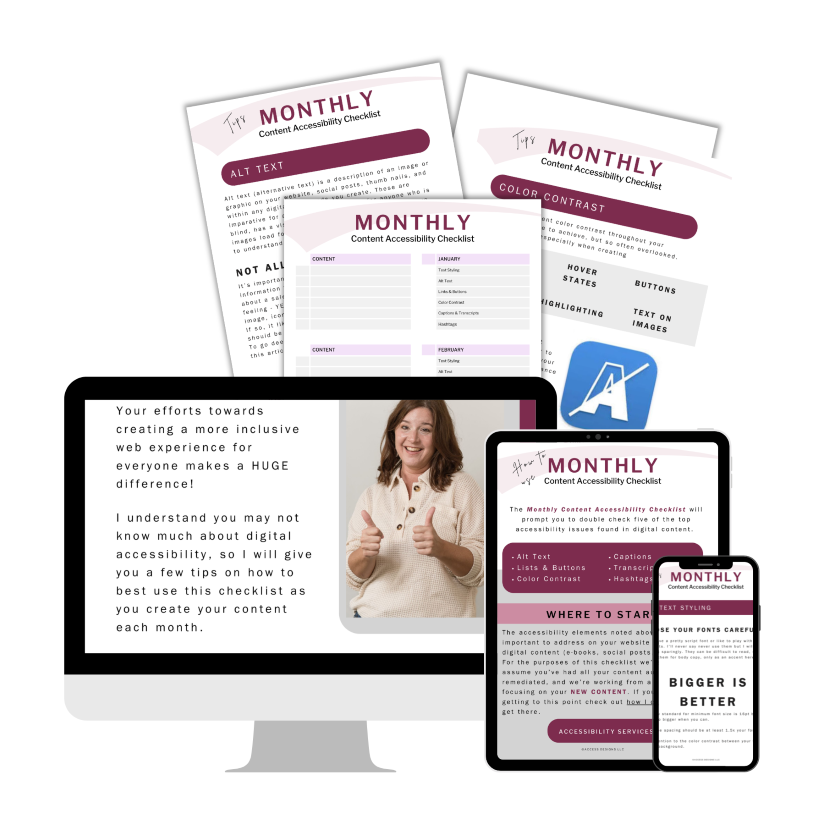
Monthly Content Accessibility Checklist
Easy first steps to track and integrate accessibility into the digital content you create on a regular basis for your business.
The accuracy of information on this website is subject to change. Implementing these accessibility tips by no means ensures your website is fully compliant with current guidelines or laws. You should consult with a professional to audit and/or remediate your site and obtain an accessibility statement.
©Access Designs LLC | All Rights ReservedLegal ▸ Privacy Policy ▸ Terms ▸ Accessibility Statement