Accessible Lists: Are You Using Bullets and Numbers Correctly?
Lists seem simple, and in a lot of ways they are. But this is one of those small details that can make a big difference for accessibility.
If you want content to be easy to follow, it is not enough to make something look like a list. You want to create it as a real list using the bulleted list or numbered list tool in your website builder, Word, or Google Docs.
In other words, if your content looks like a list, it should act like a list too.
That helps screen readers and other assistive technology understand the content correctly. It also keeps things cleaner and more consistent for everyone else reading it.
In This Article
The Most Common Mistake When Making Lists
Where Proper Lists Matter Most
What to Remember Before You Publish
The Two Main Types of Lists
This part is pretty straightforward, but a lot of people do not realize there are different use cases for bulleted lists and numbered lists.
Unordered Lists
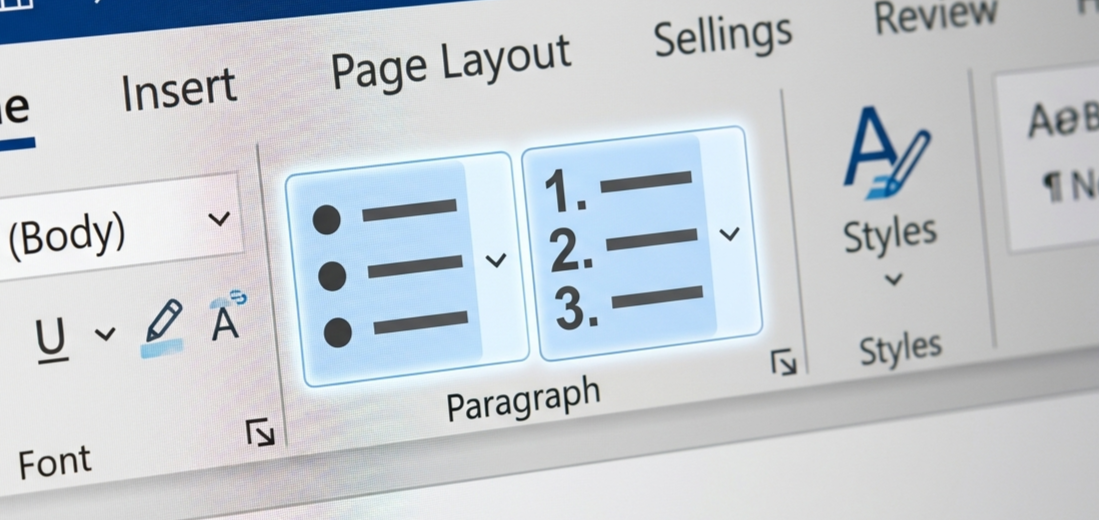
Use a bulleted list, also called an unordered list, when the order DOES NOT MATTER.
Examples
Services included in a package
Features of a product
Items in a checklist
A list of resources
Ordered List
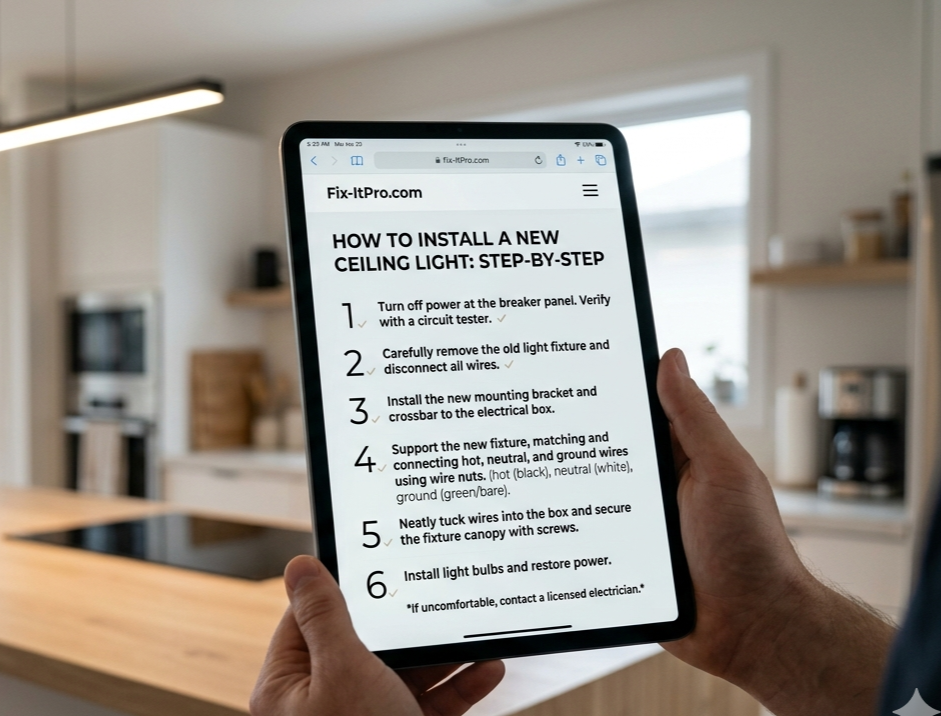
Use a numbered list, also called an ordered list, when the order DOES MATTER
Examples
Directions
Setup steps
Instructions for filling out a form
Checkout or booking steps
It really is that simple! If the order matters to achieve a certain result the list must be made using the ordered list (a numbered list) tool.
The Most Common Mistake When Making Lists
A very common mistake is creating lists with regular keyboard characters, alt codes, or manually typed numbers instead of using the actual list tools.
Visually, that may seem perfectly fine. But if those bullets or numbers were typed by hand instead of created with the list tool, the content will not be recognized as a true list by assistive technology.
We see this a lot, and we get it, it’s easy in WordPress, Squarespace, Word, or Google Docs to format your content to look a certain way when you are quickly typing away.
The problem is that looking right and being structured correctly are not the same thing.
Where Proper Lists Matter Most
Lists show up in more places than most people realize.
This is not just a website issue, and it is not only something to think about when you are writing a blog post. Proper lists matter anywhere you are grouping related items or sharing steps people need to follow.
Website pages
Lists are often used on websites to break information into something easier to scan.
You might use them for
Services included in a package
Product features
FAQs
Resource lists
Checklists
Step-by-step instructions
If those items belong together, they should be created as a real bulleted or numbered list, not just typed out to look like one.
Blog posts
Blog posts are one of the most common places we see list issues.
People often type dashes or numbers by hand because it feels quick and easy. But blog posts usually include a lot of content that works well as lists, like key takeaways, tips, tools, examples, or action steps.
Using the actual list tool helps keep that content easier to read and easier for assistive technology to understand.
PDFs and downloadable resources
Lists are also very common in PDFs, checklists, guides, workbooks, and lead magnets.
This matters because if a list is not created properly in the original document, that issue can carry over when the file is turned into a PDF. Starting with real list formatting in Word or Google Docs gives you a much better foundation from the beginning.
Emails and newsletters
Lists can be really helpful in emails too, especially when you are sharing:
Quick tips
Updates
Links
Steps
Included resources
A short list can make an email easier to skim and easier to come back to later. And just like anywhere else, it should be created with the proper list formatting instead of manually typed symbols.
Word documents and Google Docs
Documents are another big one.
Whether you are creating meeting notes, checklists, onboarding materials, client guides, or internal resources, lists help organize the content clearly. Using the built-in list tools keeps that structure in place and can also help if the file gets shared, reused, or exported later.
Anywhere you are grouping related content
That is really the bigger point.
If you are creating a group of related items or a sequence of steps, there is a good chance a proper list is the right choice. This applies across platforms and content types.
So while the tool may look a little different in your website builder, email platform, Word document, or Google Doc, the idea stays the same: if it is a list, build it like a real list.
Can I Customize My Lists?
Yes, definitely.
Many platforms let you change the look of your bullets, and in some cases you can even use Unicode symbols for a more unique style. That can be a nice way to add a little personality or better match your brand.
Just do not go too crazy with it. The point of a list is to make content easier to understand, not to decorate it so much that the symbol becomes the focus. In most cases, simple is best.
If you want to use a custom bullet style, make sure the list is still created with the actual list tool, the symbol is easy to see, the design does not distract from the content, and readability stays the priority.
The content ALWAYS matters more than the symbol.

What to Remember Before You Publish
The good news is you do not need to know code to do this correctly. You just need to use the built-in list tools instead of typing symbols manually.
Before you publish, keep these in mind
Use the bulleted list or numbered list option in your editor instead of typing hyphens or asterisks by hand.
Do not manually number each line and assume it works the same way as a true numbered list.
Use lists when you really have related items or steps, not just because you want a certain look.
Keep custom bullets simple so the design supports the content instead of distracting from it.
If the order matters use numbers (ordered list), otherwise use bullets.
Accessible lists help with readability too
One reason we like talking about things like lists is because they are practical. This is an accessibility best practice that also makes content easier for everyone to read.
Lists can help people
Scan faster
Find key points more easily
Follow steps more clearly
Come back to information later
So, even if someone is not using a screen reader, clean list formatting still helps.
Using the built-in bulleted list and numbered list tools in your website builder, Word, or Google Docs is a simple way to make content clearer, more usable, and more accessible.
It is one of those easy wins that is worth doing every time.
Creating Accessible Lists FAQS
Why does using the real list tool matter for accessibility?
Using the actual bulleted or numbered list tool helps assistive technology recognize the content as a list. If bullets or numbers are typed by hand, the list only looks correct visually without being structured correctly behind the scenes.
Can I just type dashes or numbers instead of using the list button?
Technically, yes, but it is not the best choice. Typing dashes, symbols, or numbers manually DO NOT create a true list, which makes it harder for those using assistive technology to navigate the content.
Are bulleted and numbered lists better for readability too?
Yes. Lists can make content easier to scan, easier to follow, and easier to come back to later. They help break up information in a way that works well for accessibility and everyday readability.
Do I need to know code to create an accessible list?
No. In most cases, you just need to use the built-in bulleted list or numbered list option in your website builder, Word, or Google Docs instead of typing symbols manually.
Should every group of text be turned into a list?
No. A list works best when you truly have a group of related items or steps. If something is just a short sentence with a few items in it, it does not always need list formatting. The goal is to use lists where they add clarity, not just for visual styling.
What happens if I use a bulleted list when the order actually matters?
That can make the content less clear. If the information needs to be followed in a certain sequence, a numbered list is the better choice because it shows that the order matters.
Make it stand out
If you are not sure whether your website content is structured correctly, let us help.