

Picture the last tutorial or product demo you watched. Someone probably clicked a few buttons, held something up to the camera, or flashed a chart on screen for a few seconds. Now play that same video with your eyes closed. How much of it would still make sense?
If you've ever sat in a conference session where the projector gave out halfway through, you know the feeling. The speaker keeps going, pointing at a blank screen and saying "as you can see here," while the whole room politely guesses what important points they are missing.
For people who are blind or have low vision, a lot of videos feel like that every day. Audio description (AD) fills the gap by sharing the important visual details through sound, so everyone walks away with the same message.
The good news for business owners is that it's usually less work than it sounds. You don't always need a second narrator or special software. Often the fix is simply changing what you say while you record.
In This Article
When Does a Video Need Audio Description?
What Does WCAG Require for Audio Description?
Integrated vs. Separate Audio Description
How to Add Audio Description to Your Videos
Audio Description Examples for Business Videos
What Makes a Good Audio Description?
What Is Audio Description?
Audio description (AD) is narration that shares important visual information the video's regular audio doesn't already cover. You might also see it called video description or described video.
It isn't about narrating everything on screen. It's about the details someone needs to follow along. In a website tutorial, for example, the presenter might say "Now choose this option" while clicking the Save Changes button. Anyone watching sees the click. Anyone listening has no idea what "this" means.
Try "Now select the Save Changes button in the upper-right corner" instead. That one sentence did the work of audio description, and nobody had to record a second audio track.
When Does a Video Need Audio Description?
Here's the simplest test we know to decide if your video needs audio descriptions or not. Ask yourself, "If someone could hear this video but couldn't see the screen, would they miss anything important?" If the answer is yes, describe it.
If everything important is already said out loud, there may be nothing left to describe. A talking-head video where nothing on screen adds new information is usually covered. Decorative details can stay undescribed too. If the plant behind you sways when the air conditioning kicks on, nobody needs the play-by-play, no matter how proud you are of that plant.
Description matters a lot more once your video leans on visuals. These are the usual suspects.
Tutorials and screen recordings. Phrases like "click here," "choose this," and "now drag that over," leave a listener lost. Name the button, menu, setting, or field instead. (We catch ourselves doing this too. "Click here" has a way of sneaking into every first take.)
Product demonstrations. If you're showing how something opens, fits together, or works without explaining it, describe what's happening.
Charts, graphs, and infographics. Skip reading every data point and share the takeaway, the reason the chart is on screen in the first place.
On-screen text. If a banner says "Registration closes September 30" and you never say it out loud, someone will miss it. The same goes for names, prices, dates, instructions, web addresses, and warnings.
Visual storytelling. If someone walks into a room, opens an envelope, reacts, and leaves without a word, those moments may be the whole point of the scene.
What Does WCAG Require for Audio Description?
WCAG covers audio description for prerecorded video with sound in three success criteria.
Level A (1.2.3) asks for either audio description or a media alternative, such as a descriptive transcript.
Level AA (1.2.5) asks for audio description.
Level AAA (1.2.7) covers extended audio description, which pauses the video to make room for description.
As we mentioned, if the regular audio already covers everything someone needs from the visuals, you don't need to add narration just to check a box. That's a big reason why planning what you're going to say pays off.
Integrated vs. Separate Audio Description
If you're familiar with audio description, you might picture a movie where a second narrator talks between lines of dialogue. That's one way to do it, but it's far from the only way.
Integrated description builds the visual information into what you're already saying. For tutorials, presentations, trainings, and most business videos, this is the most practical route.
Separate description uses a second narrator who describes visuals during natural pauses. It suits highly visual brand films, animations, and commercials, and takes extra scripting, recording, and editing. It can be offered as a separate described version of the video or as a description track in a media player that supports one.
Extended description pauses the video when there isn't enough quiet time to fit the description, then picks back up. Most small businesses won't need it often, but it explains why squeezing narration into the gaps doesn't work for every video.
How to Add Audio Description to Your Videos
For most business content, the work starts before you hit record. It's a lot like planning an event. The best fixes happen on paper weeks ahead, not in the ballroom while guests are walking in. Once a video is edited, with the music placed and the timing set, finding room to describe the chart nobody explained gets a lot harder.
Step 1: Look at what will be shown. Go through your script, storyboard, or screen recording plan and note what someone will see but not hear.
Step 2: Say it naturally when you can. If your tutorial walks through Settings > Billing > Update Payment Method, say each step instead of counting on viewers to follow your cursor.
Step 3: Keep it focused. You don't need to narrate every mouse wiggle. Describe what someone needs to follow along and let the rest go.
Step 4: Leave room for separate description. If you'll need a separate track, build in natural pauses now rather than wedging them in after the edit.
Once you’ve walked through those steps and determined that you do need audio descriptions, you can either naturally record them in as you are filming OR record the separate audio track and lay it in while editing the video.
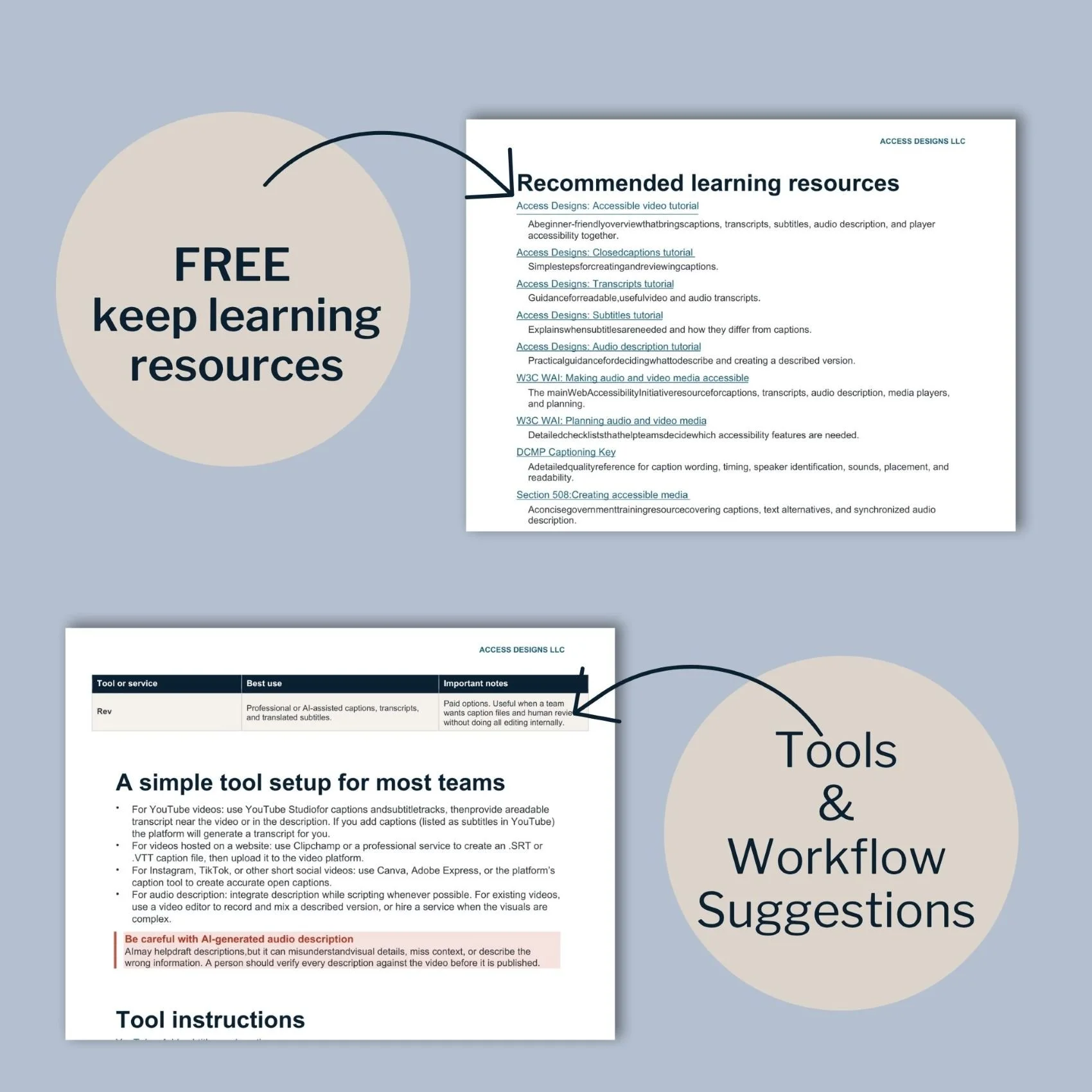
Creating video content for your business?
Our Accessible Video Guide sorts out captions, subtitles, transcripts, and audio descriptions, so you know which elements every one of your videos needs.
Audio Description Examples for Business Videos
Sometimes a before and after is what makes it click. So, here are some examples that might help you decide if your style of videos may need audio descriptions.
Website tutorial. Instead of "Click here and then choose this option," say "Open Page Settings, then select SEO from the menu."
Product demo. Instead of "This is how it works," say "I press the button on the side, and the top panel slides open to show the filter compartment."
Chart or graph. Instead of "As you can see, we had a great year," say "Sales climbed all year, with the biggest jump between the third and fourth quarters."
On-screen text. If the screen shows "Free shipping through Friday," say "And through Friday, all orders ship free."
Highly visual brand video. A separate narrator might say "The scene moves into a workshop, where a craftsperson shapes a piece of wood by hand."
What Makes a Good Audio Description?
Good audio description is useful, not intrusive. If you need to add AD to your video keep these things in mind.
Focus on what matters. Describe what someone needs to understand the content and skip the rest.
Be specific. "She does this" or "this graph shows the results" doesn't tell a listener much. Name what's actually happening.
Keep it short. Give people enough to understand the visual without being too wordy, especially when description has to fit between lines of dialogue.
Describe, don't interpret. If it's important to know that someone smiles, describe the smile. You don't need to announce that they're "overjoyed and deeply moved" unless that meaning is clearly part of the content.
Don't talk over important audio. Fit separate description into natural pauses so it adds what was missing without making the existing audio harder to follow.
What About Videos You've Already Published?
Most business videos weren't made with audio description in mind, so if you're mentally scrolling through your own library right now wondering where to begin, you're in good company.
Start with the videos that matter most, like your top tutorials, product demos, or anything customers rely on to get something done. Watch each one without looking at the screen and jot down every spot where you get lost. For short or popular videos, re-recording with clearer narration is often the quickest path. A descriptive transcript can cover Level A without touching the video, but Level AA asks for audio description, so plan on narration or a described version for your most important videos.

We helps small businesses build websites that are accessible, clear, and easier for EVERYONE to use from the start. If you want a professional review of your site’s accessibility, we’d love to take a look.

Audio Description FAQs
What is audio description?
Audio description shares important visual information through audio for people who can't see the video well or at all. It can cover actions, on-screen text, charts, expressions, settings, and other details needed to understand the content.
Does WCAG require audio description?
For prerecorded video with important visual information, WCAG Level A (Success Criterion 1.2.3) requires either audio description or a media alternative, such as a descriptive transcript. Level AA (Success Criterion 1.2.5) requires audio description.
Does every video need audio description?
No. If the regular audio already covers all the important visual information, there may be nothing extra to describe.
What's the difference between captions and audio description?
Captions give a text version of meaningful audio, including dialogue and important sounds. Audio description gives an audio version of important visual information. Many videos need both because they remove different barriers.
Can AI tools create audio description for me?
Some tools can draft descriptions automatically, and they can be a helpful starting point. A person still needs to review them, though, because a tool doesn't know which visuals matter most to your message. Treat an AI draft like a first take, not the final cut. It may also be worth it to your business to hire a company to handle adding AD to your videos.

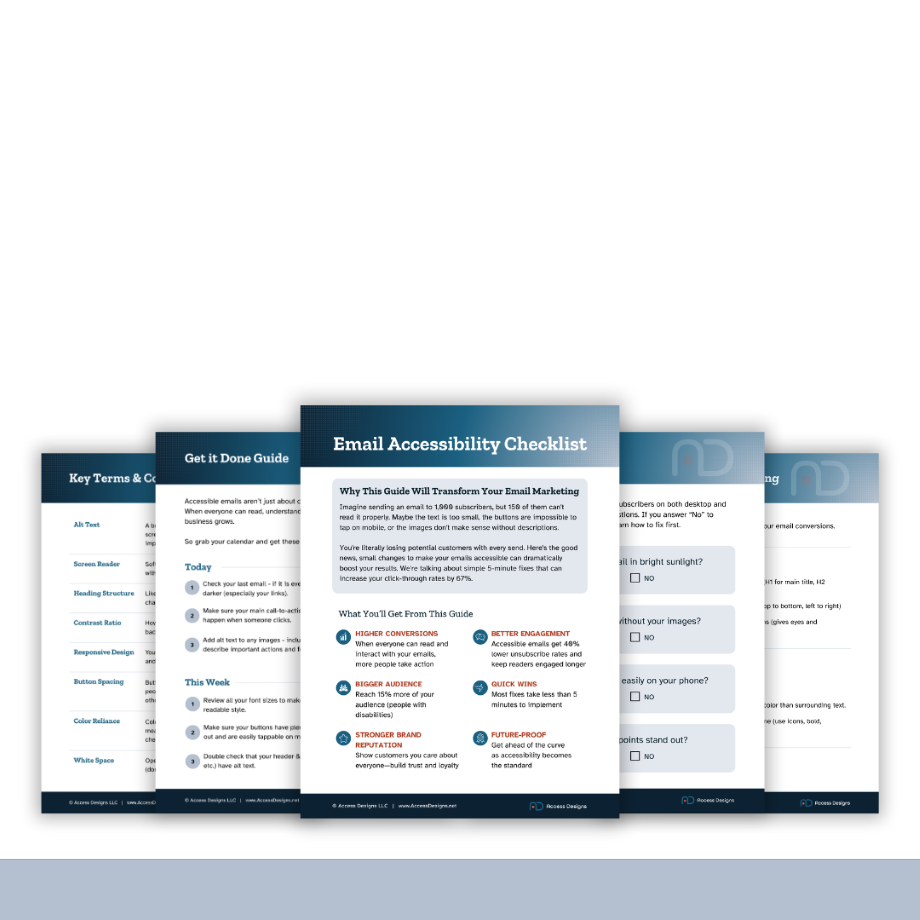
A beginner-friendly guide to captions, transcripts, subtitles, and audio description — so you always know which features your video needs, and how to create them without guesswork.
What You'll Get
What each feature does, and when you need it
A simple way to decide what your video needs
A step-by-step production workflow
Caption and transcript quality checklists
Beginner-friendly tool comparisons, free and paid
Links to official step-by-step tool tutorials
A plain-language standards reference
A pre-publish testing checklist
Beautifully designed, fully accessible PDF
Key Benefits
No technical experience required
Works with any video platform or editor
Built around free and low-cost tools
Instant download after purchase
Important
This is a digital product delivered via instant download. Due to the nature of digital products, all sales are final and not eligible for returns or refunds.
Personal use only
Licensed for individual use and cannot be resold, shared, or redistributed. Each purchase is for single-user access only.