

Common Accessibility Mistakes Found on Nonprofit Websites
Nonprofit websites have a lot of jobs.
They introduce people to a cause, share stories, accept donations, recruit volunteers, promote events, publish reports and hopefully turn visitors into long-term supporters.
But when accessibility gets overlooked, some of the very people a nonprofit wants to reach may have trouble donating, signing up, learning about programs or even understanding what the organization does.
And accessibility problems aren't always hiding in complicated website code. Some of the biggest barriers we find come from everyday content like donation forms, PDFs, event flyers, videos and even buttons.
Let's look at some of the common accessibility mistakes found on nonprofit websites and what organizations can do to improve their content.
In This Article
Why Website Accessibility Matters for Nonprofits
Inaccessible Donation and Fundraising Forms
Volunteer, Contact and Registration Forms
Event Information Shared Only in Flyers and Graphics
Inaccessible PDFs, Reports and Downloadable Resources
Videos Without Captions or Other Alternatives
Website Features That Don't Work With a Keyboard
Third-Party Tools That Create Accessibility Barriers
Making Accessibility Part of Your Nonprofit's Digital Strategy
Why Website Accessibility Matters for Nonprofits
A nonprofit's website is often one of the main ways people interact with the organization.
Someone may be visiting because they want to donate. Another person may need the services the organization provides. Someone else might be looking for an upcoming event, trying to volunteer or researching how the organization uses its funding.
If those tasks aren't accessible, it isn't simply an inconvenience.
A person may never complete the donation. They may not be able to register for the event. Or they may leave without finding the information or assistance they came for.
The Web Content Accessibility Guidelines, or WCAG, provide internationally recognized standards for making web content more accessible to people with disabilities. WCAG covers things like providing alternatives for images and multimedia, making functionality work with a keyboard, helping people navigate and understand content, and making websites compatible with assistive technology.
For nonprofits, those principles need to extend beyond the homepage. They should follow people through their entire experience.
Inaccessible Donation and Fundraising Forms
The big DONATE button may be easy to find, but what happens after someone selects it?
Donation forms are one of the first places we would test on a nonprofit website.
A donor may need to choose a donation amount, select whether the gift is recurring, enter contact and payment information, designate a fund and submit the donation.
If form fields aren't properly labeled, instructions aren't clear or errors aren't communicated accessibly, completing that process can become difficult or impossible for someone using assistive technology.
Don't just test whether the donation button works.
Try completing the entire donation process using only your keyboard. Review it with a screen reader. Trigger an error intentionally and see whether you can tell what went wrong and how to fix it.
Your donation experience needs to be accessible all the way through the final confirmation.

Does your donation block work?
An accessibility audit looks beyond your homepage and tests the forms, tools and content people actually need to use.Volunteer, Contact and Registration Forms
Donation forms aren't the only forms nonprofits depend on.
You may also have
Volunteer applications
Event registrations
Newsletter signups
Membership applications
Contact forms
Program enrollment forms
Surveys
Grant or assistance applications
Accessible forms need more than visible text sitting somewhere near an input field.
People need to know what information belongs in each field, which fields are required and what happened if something wasn't completed correctly.
Forms can be particularly challenging for people using screen readers, speech input, keyboard navigation or people with cognitive disabilities when that information isn't communicated clearly and things don’t function as expected.
Keep forms as simple as possible and only ask for the information you actually need. That happens to be good usability advice for everyone.
Challenges with Images
Nonprofit websites tend to be highly visual.
Photos show the communities you serve. Images tell donor stories. Graphics share statistics. Logos identify sponsors and community partners.
Making all of that visual content available to all your website visitors, needs to be considered.
An informative image should have alternative text that communicates the information someone would miss if they couldn't see it. Decorative images can generally use a “null” alternative text so a screen reader can skip them. Functional images, such as an image being used as a button or link, need an accessible name that communicates their purpose.
Context matters too.
A photo of volunteers planting trees might simply support the surrounding story. But if the photo communicates something important that isn't explained anywhere else, that information may need to be included in its alternative text.
The goal isn't to describe every leaf, shirt and smiling person.
Simply ask yourself, What information would someone miss if they couldn't see this image?
Event Information Shared Only in Flyers and Graphics
This is one we see frequently with organizations promoting community events.
Someone creates a beautiful event flyer in Canva and uploads it to the website.
The problem is that the graphic may contain all of the important details.
Saturday, October 17
Community Fall Festival
11 a.m.–3 p.m.
Central Park
Free admission
If that information only exists inside the image, it may not be available to someone using a screen reader.
An easy solution is to put the essential event information directly on the webpage as actual text.
You can still use the pretty flyer.
Just don't make the flyer the only way to learn what's happening.
Inaccessible PDFs, Reports and Downloadable Resources
Nonprofits need their PDFs.
Annual reports. Impact reports. Program applications. Strategic plans. Newsletters. Donor packets. Volunteer handbooks. Event schedules. Resource guides.
Unfortunately, just uploading a PDF doesn't automatically make it accessible.
A document can look perfectly organized visually while having little or no meaningful structure for someone using assistive technology.
PDF accessibility can involve things such as document structure, headings, reading order, lists, tables, alternative text, links and form fields.
Before uploading another PDF, ask whether the information truly needs to actually be a PDF.
Could the event schedule be an accessible webpage instead?
Could the annual report have an HTML summary along with the downloadable report?
When a PDF is necessary, accessibility should be part of creating and testing the document rather than something considered after it has already been published.
This will take some time and extra training, but it can save you more time and money in the long run.
Videos Without Captions or Other Alternatives
Videos can be incredibly effective for nonprofits.
A two-minute story from someone your organization has helped can communicate more emotion than several pages of website copy.
But multimedia needs accessible alternatives too.
WCAG includes requirements for alternatives to audio and video content, including captions for prerecorded video with audio. That means accessibility needs to be considered when publishing,
Mission videos
Donor stories
Recorded webinars
Event recordings
Interviews
Educational videos
Social videos embedded on the website
Automatic captions can be a helpful starting point, but they should be reviewed for accuracy. Names, organizations, technical terminology and local places are exactly the kinds of things automated captioning may get wrong.
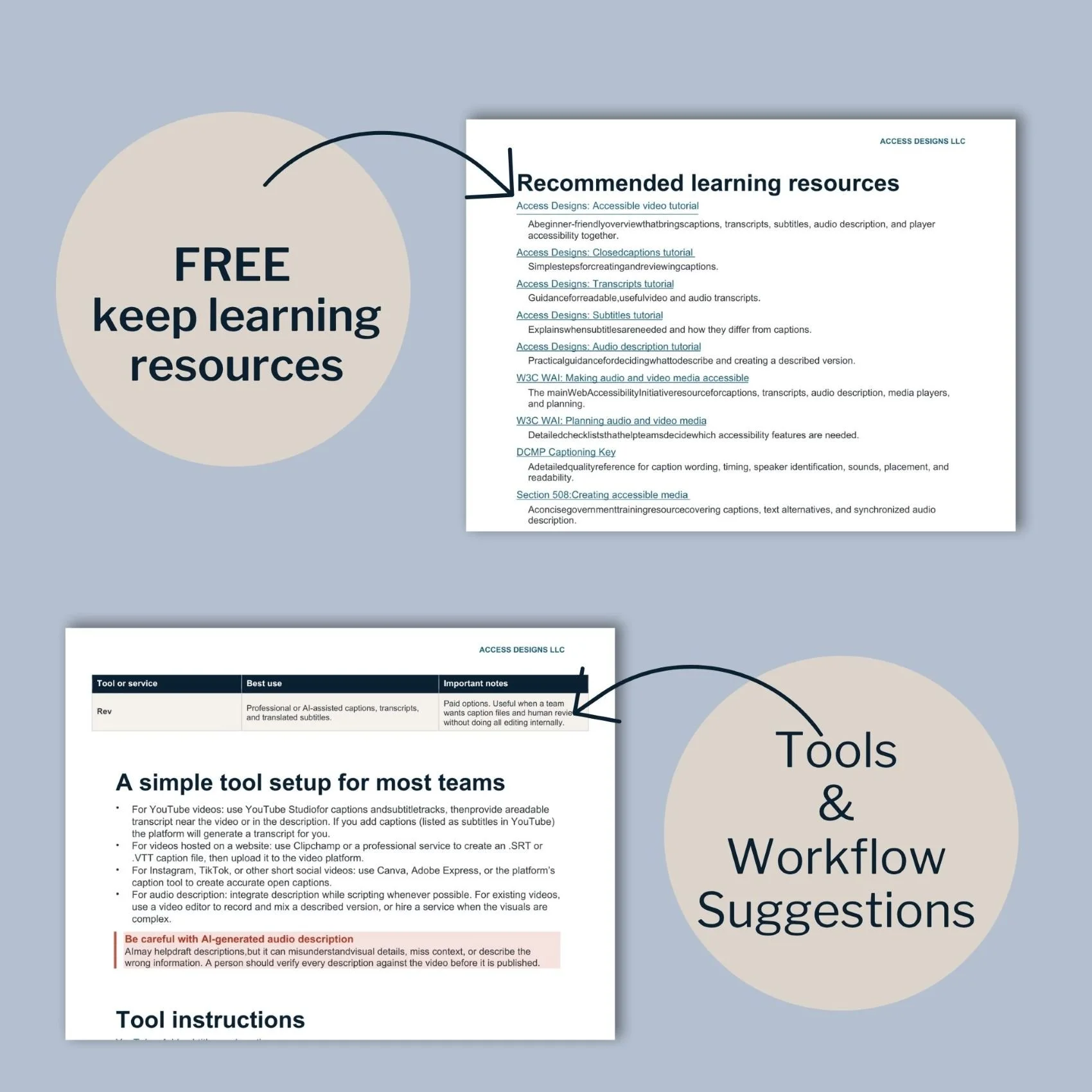
Accessible Video Production Guide
Does your video need captions, subtitles, a transcript, audio descriptions...or all of them?
Our Accessible Video Guide breaks down the pieces of an accessible video and helps you figure out what your content needs without getting buried in technical terminology.
Website Features That Don't Work With a Keyboard
Try this test on your website.
Put your mouse aside.
Press the Tab key and attempt to use the website.
Can you open the navigation?
Can you select Donate?
Can you complete a form?
Can you choose an event?
Can you close a popup?
Can you tell where you are as you move through the page?
It’s important to have functionality available without a mouse because many people cannot use them and navigate websites using keyboards or other input devices instead.
Keyboard testing is simple to start, and it can uncover surprisingly significant barriers. So give it a try.
Third-Party Tools That Create Accessibility Barriers
Here's where nonprofit websites can get complicated.
Your actual website may be relatively simple, while half of its important functions come from somewhere else.
Think about the tools you use for
Donations
Event ticketing
Volunteer management
Email signup
Appointment scheduling
Membership management
Surveys
Payment processing
Online stores
You may not have built those tools, but they're still part of the digital experience you're asking visitors to use.
A beautifully accessible Donate button doesn't help much if the donation platform it leads to can't be completed with a keyboard.
When you're choosing new software, accessibility should be one of the questions you ask the vendor before signing up. And when you're evaluating your existing website, don't stop testing when someone leaves your main website. Follow the same path your visitors have to follow.
Making Accessibility Part of Your Nonprofit's Digital Strategy
Most nonprofits aren't publishing inaccessible content intentionally.
Someone uploads this month's event flyer.
Another team member creates the annual report.
A volunteer adds new photos.
The fundraising team switches donation platforms.
Over time, accessibility can disappear simply because no one is responsible for checking it. That's why accessibility works much better as an ongoing practice than a one-time website project.
Partner with a professional or give the people creating digital content some basic accessibility training. Add accessibility checks to your content process. Ask vendors about accessibility before purchasing new technology. Periodically test important tasks like donating, registering and applying.
And when you need to know how those pieces work together for someone using assistive technology, bring in accessibility professionals and users with disabilities for more thorough testing.
An automated checker can find some issues, but it cannot determine whether your entire website experience is accessible. Your nonprofit team already puts a lot of effort into removing barriers in the work you do. Your digital spaces deserve that same attention.
We helps small businesses build websites that are accessible, clear, and easier for EVERYONE to use from the start. If you want a professional review of your site’s accessibility, we’d love to take a look.

Frequently Asked Questions About Nonprofit Website Accessibility
Does a nonprofit website need to follow WCAG?
WCAG is an international technical standard for web accessibility rather than a law by itself. It is widely used as the benchmark for evaluating web accessibility and is referenced by laws, regulations and accessibility policies in many jurisdictions. Which legal requirements apply to a particular nonprofit depends on factors such as location, organization type, funding and the services being provided. Regardless of legal requirements, WCAG provides nonprofits with a practical framework for improving access to their websites and digital content.
What should a nonprofit check first for accessibility on their website?
Start with the tasks people depend on most. Try donating, registering for an event, submitting a contact or volunteer form, navigating the site with a keyboard and accessing your most frequently downloaded documents. You can also review headings, links, images, color contrast and video captions. These basic checks won't replace a professional accessibility audit, but they can reveal some common problems.
Are third-party donation and registration platforms part of website accessibility?
They are part of the experience you're providing to visitors. Even when another company owns the software, an inaccessible donation form, scheduling tool or registration system can still prevent someone from completing the task your website directed them to complete. Accessibility should therefore be one of the factors considered when selecting, testing and maintaining third-party tools. It’s not your responsibility to make those third party tools accessible, but you should always try to partner with companies that also care about providing the best and most accessible experience for your visitors.

A beginner-friendly guide to captions, transcripts, subtitles, and audio description — so you always know which features your video needs, and how to create them without guesswork.
What You'll Get
What each feature does, and when you need it
A simple way to decide what your video needs
A step-by-step production workflow
Caption and transcript quality checklists
Beginner-friendly tool comparisons, free and paid
Links to official step-by-step tool tutorials
A plain-language standards reference
A pre-publish testing checklist
Beautifully designed, fully accessible PDF
Key Benefits
No technical experience required
Works with any video platform or editor
Built around free and low-cost tools
Instant download after purchase
Important
This is a digital product delivered via instant download. Due to the nature of digital products, all sales are final and not eligible for returns or refunds.
Personal use only
Licensed for individual use and cannot be resold, shared, or redistributed. Each purchase is for single-user access only.