

Selling an online course or membership takes a lot more than putting a few videos behind a paywall or private login. There are lessons, workbooks, quizzes, community spaces, downloads, live calls, progress tracking, email reminders, and usually a handful of third-party tools holding it all together.
That's why accessibility can't stop at the sales page. Someone might read about your course, buy it, and create an account without a hitch, then get stuck the moment they try to navigate a lesson or open the workbook.
Picture a new student who signs up for a bookkeeping course on her lunch break. Checkout takes two minutes. Then the first lesson opens with a drag-and-drop activity she can't complete with the keyboard she relies on, and a workbook PDF her screen reader reads as “BK_WB_52307.” She paid for the course, now she can’t take it.
Let's look at the most common accessibility mistakes inside course and membership websites and how to fix them, whether you're building something new or working with a course that's already full of students.
In This Article
Accessibility Doesn't Stop at Enrollment
Course Videos Without Accessible Alternatives
Workbooks, Checklists, and Downloads
Lessons With Poor Heading Structure
Images, Charts, and Screenshots
Quizzes and Interactive Activities
Inaccessible Progress Indicators
Third-Party Course and Membership Tools
Accessibility Doesn't Stop at Enrollment
Course creators put a lot of work into the public side of their business. The sales page is polished, checkout is tested, and the welcome emails are scheduled. But accessibility needs to carry through after someone selects Enroll.
Once they're inside, students need to move between lessons, watch videos, download a workbook, take quizzes, mark lessons complete, join discussions, attend live calls, and update account information. Every one of those steps is part of the product they paid for.
WCAG covers much more than how a website looks. It includes structure, multimedia, forms, keyboard access, timing, and how content works with assistive technology. For a course creator, that means looking at the whole learning experience, from enrollment through the final lesson.
Course Videos Without Accessible Alternatives
Video is a huge part of most online courses. You might be teaching to the camera, walking through slides, or demonstrating software on your screen, and each of those needs a little attention to make sure everyone can access every thing.
Captions
Captions are an obvious place to start. Prerecorded video with meaningful audio requires captions at WCAG Level A. They should include the spoken words and any other sounds someone needs to follow along.
Automatic captions are a good starting point, but they need a review. Course content is full of business acronyms, software terms, abbreviations, and industry words, and nothing undercuts expert content quite like auto-captions that translate things wrong, like “Next, log into your course portal,” but your students might see, “Next, log into your horse portal.” Not quite the professional first impression you were going for.
Describing What's on Screen
Captions don’t cover everything, though. Say you're recording a tutorial and tell students, "Now select this button over here, then move this box to this section." Someone who can't see your screen has no idea what you’re doing.
At WCAG Level AA, prerecorded video with important visual content requires audio description. For course creators, the simplest way to cover a lot of that is to describe what's happening as you teach.
Instead of "Click this button," try "Select the blue Create New Project button in the upper-right corner." You're still teaching naturally, but your narration is helping everyone learn their way around, even if they can’t see the screen.
Transcripts are worth adding too. They aren't automatically required for every prerecorded video at Level A or AA, but W3C recommends descriptive transcripts because they help a wider range of students, including anyone who would rather skim than rewatch.
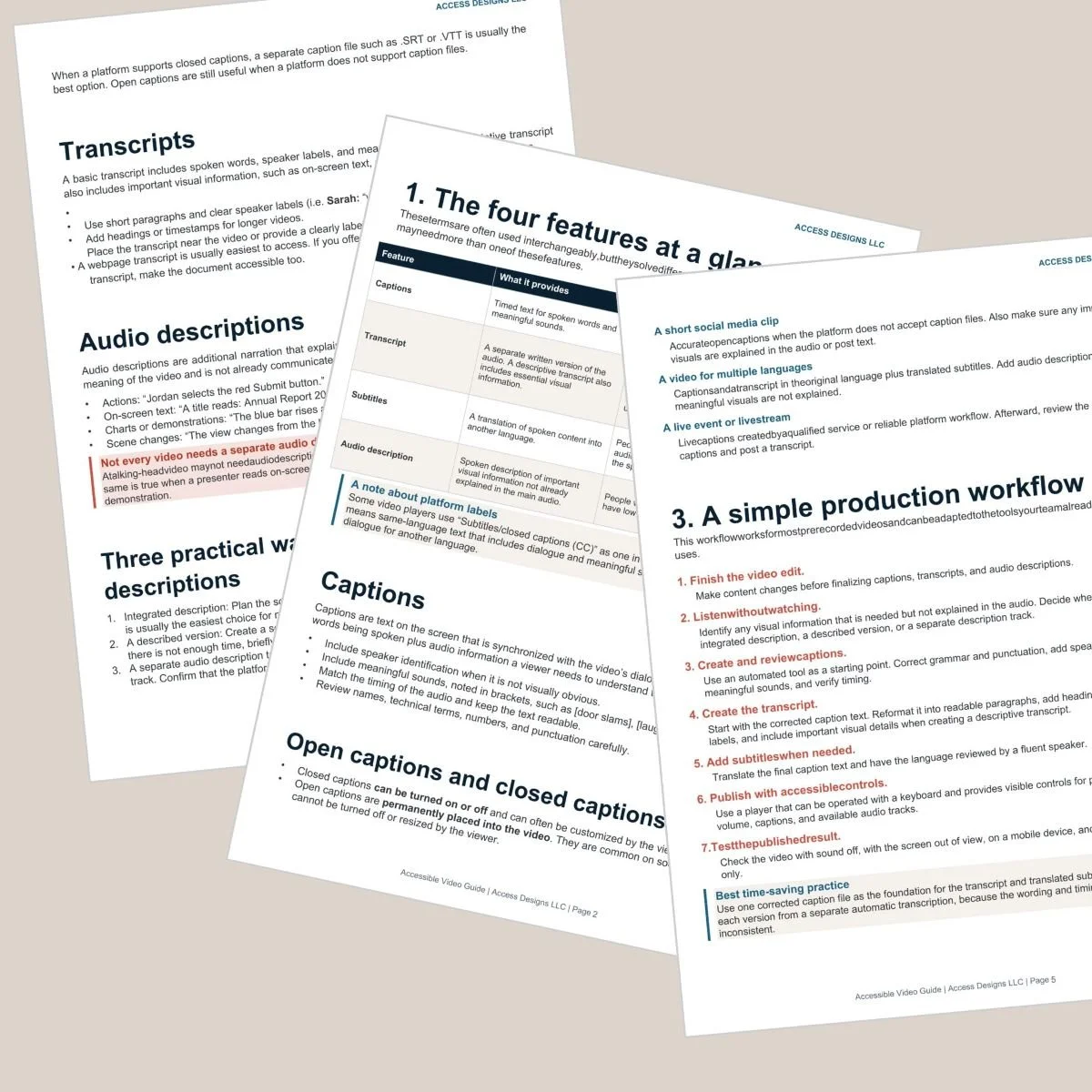
Accessible Video Production Guide
Are your course videos accessible?
Captions are only one piece of accessible video. Learn what to consider when your videos include demonstrations, slides, graphics, and other important visual information.
Workbooks, Checklists, and Downloads
Courses and memberships come with a lot of extras, like workbooks, checklists, templates, resource guides, e-books, and slide decks. These are often created without considering that they also need to be accessible.
A beautiful workbook designed in Canva and exported as a PDF can look great but is likely hard or impossible to use with assistive technology. Accessible documents need real headings, a logical reading order, proper lists, descriptive links, alt text for important images, enough color contrast, and working form fields anywhere students are expected to type. The same goes for Word documents, spreadsheets, and presentations.
Sometimes the better answer is simpler. Ask whether a resource needs to be a download at all. A short resource list or lesson summary is often easier for everyone to use right inside the course platform.
If your course already has a library of downloads, start with the ones students use most, like the main workbook, and fix those first. For new resources, build accessibility in from the start instead of patching it after hundreds of students have downloaded the file.
Lessons With Poor Heading Structure
Long lessons need structure to break them up into digestible parts. It’s important to use real headings (not just text styled large and bold) because true headings tell assistive technology how the sections of a page relate to each other, and they let people jump straight to the part they need.
Think of a lesson like an outline. Here’s what that might look like for an email marketing lesson.
Creating Your Email Newsletter (lesson title, Heading 1)
Choosing Your Email Platform (Heading 2)
Features to Compare (Heading 3)
Setting Up Your First Campaign (Heading 2)
Adding Your Subscribers (Heading 3)
Pick headings based on the structure of your content, not because you like how a certain size looks. You can style them to match your brand afterward.
When Your Course Platform Limits Your Headings
Here’s the catch. Not every course platform lets you choose heading levels. If your course lives on Squarespace, you’re building lessons the same way you build any other webpage, so you can pick the heading level for every section. Platforms like Teachery may not give you that kind of control, and some lesson editors offer a single “heading” style or none at all.
Heading options are sometimes tucked into a text style menu or available through an HTML or code block. So if you are in the process of choosing a platform take some time to research how much control you’ll have over the page structure before you commit. It’s a lot easier to build on a platform that supports good structure from the start, than to rebuild 40 lessons somewhere else later.
Images, Charts, and Screenshots
Images in a course are often more than just decorative. A screenshot might be part of the instruction, a chart might explain the concept, and an infographic might sum up a whole lesson. If that information only exists visually, some students will miss part of what you are teaching.
W3C recommends writing text alternatives based on an image's purpose. Informative images need their essential information in text, decorative images usually don't need a description, and functional images need a name that says what they do. For course content, the most useful question to ask is simple. If a student couldn't see this image, what would they need to know to understand the lesson?
Sometimes short alt text covers it. A complex chart or diagram may need a longer explanation in the lesson itself. And demonstration screenshots work best when the written steps already explain what the screenshot shows, so students have more than one way to follow along.
Quizzes and Interactive Activities
Quizzes and activities help students check their progress and put what they've learned to work. They're also where some of the most frustrating barriers in a course tend to hide.
Labels, Instructions, and Feedback
A quiz can cause problems in a few common ways.
Questions or answer choices aren't properly labeled, so screen reader users don't know what they're selecting.
Keyboard users can't select an answer or move to the next question.
Instructions are unclear about what students are supposed to do.
Error messages or feedback show up visually but aren't announced to assistive technology.
Depending on how you are incorporating quizzes into your course you may need help from an accessibility specialist to ensure the content is accessible. It’s also good to consider if a regular multiple-choice question teaches the same thing as an elaborate matching game, the simpler one would give more students a smoother experience.
Time Limits
Not everyone reads, processes information, or uses technology at the same speed. Someone using a screen reader, magnification, or speech input may need more time, and so may someone with a cognitive, motor, or learning disability. That's why WCAG requires a way to turn off, adjust, or extend time limits unless a specific exception applies.
For most self-paced courses, there's no reason to time a quiz in the first place. Before keeping that 15-minute limit because it was the default setting, ask whether timing is essential to what you're teaching. If it isn't, take the pressure off and remove any time limits.
Drag-and-Drop and Mouse-Only Activities
"Drag each item into the correct category" can look engaging, but dragging takes precise pointer movement that some people can't do. When an activity uses dragging, there generally needs to be another way to do the same thing with a single pointer, like buttons that move items up and down or selecting an item and then its destination.
Keyboard access matters throughout your entire course. A student should never need a mouse to open lessons, use controls, answer questions, or get around the membership area. It's one more reason to research what platform you are going to host your course on. You can’t assume every platform is created equally when it comes to accessibility.
Inaccessible Progress Indicators
Course platforms love progress bars. Green checkmarks next to finished lessons, a colored circle around the current module, a bar slowly filling as students move along. These cues are helpful. They just shouldn't be the only way the information is available.
If incomplete lessons are gray and completed lessons turn green, add visible text like Completed or a status that assistive technology can announce. The same goes for correct and incorrect quiz answers, membership status, required lessons, and anything else your platform marks with color or icons.
Login and Account Barriers
With all the time spent building what's inside a membership, it's easy to forget one important step. People have to be able to get in. Creating an account, logging in, resetting a password, entering a verification code, and updating billing information all matter.
Among other things, logging in shouldn't require someone to solve a puzzle or remember and retype information unless there's an alternative or help available. WCAG specifically recognizes password managers and copy and paste as ways to ease that barrier.
This is especially worth checking because your course, community, or payment platform controls the login for you. Walk through the whole account experience, including what happens when something goes wrong. Can someone recover a forgotten password, understand an error message, find their account settings, and do all of it without a mouse? Those little pages are easy to overlook until they're the only thing standing between a paying student and the course they bought.
Third-Party Course and Membership Tools
Most online courses aren't built on one piece of software anymore. Your course platform might handle lessons while separate services handle payments, email, quizzes, community discussions, webinars, scheduling, certificates, surveys, and forms. Every new tool brings its own accessibility experience that you don't directly control.
That doesn't mean you need to build everything yourself. It does mean accessibility belongs in the conversation when you're choosing software. Ask vendors what they've done to support accessibility, look for their accessibility documentation, and ask whether they test with keyboards and screen readers. If they share a VPAT or Accessibility Conformance Report, read what it actually says instead of assuming everything is accessible because you see one listed in their footer.
Always test the features your students will use. A platform might handle lesson navigation well while the quiz builder tucked inside it is totally inaccessible. In a case like that you can look for other quiz options to use.
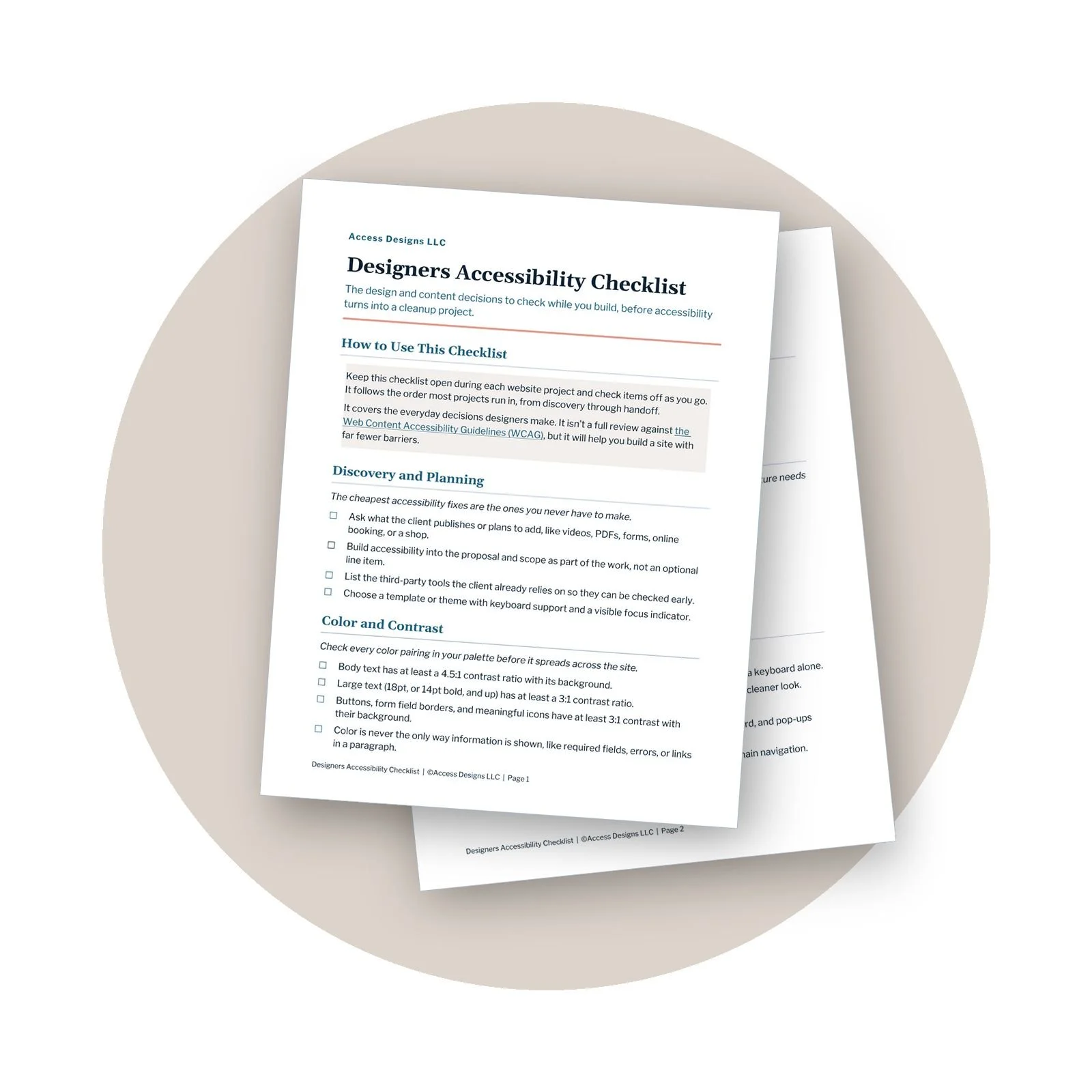
Designers Accessibility Checklist
Want an easier way to build accessibility into client websites?
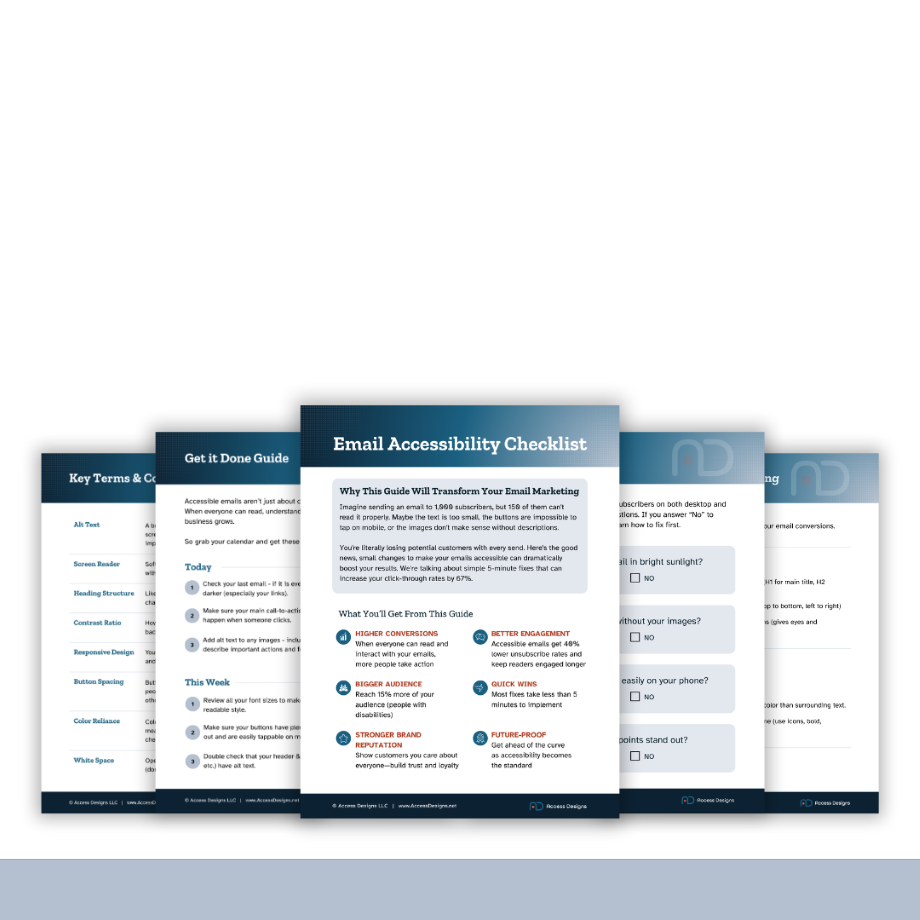
Our Accessible Designer Checklist walks through the design and content decisions to check while you work, before accessibility turns into a cleanup project.
Making Your Online Course More Accessible
The easiest time to think about accessibility is before you've recorded 75 videos and designed a 100-page workbook. But most courses weren't built with accessibility in mind. Most accessibility issues can be easily fixed, you just need to commit the time to do the work, just like you would for any other part of your business.
As you create your course remember to describe what's happening on screen while you record, build workbooks with real headings from the start, weigh accessibility alongside price and features when you choose software, and make sure every quiz or activity can be completed more than one way. For an existing course, start with what students use most, like your core videos, main workbook, and first few lessons, and work outward from there.
Every so often, go through your own course as a student would. A few quick checks can tell you a lot.
Navigate a full lesson using only your keyboard.
Turn on captions and read along for a few minutes.
Zoom the page to 200% and see if anything starts to overlap or causes a vertical scroll.
Open your PDFs in Acrobat Pro and run an accessibility check.
Trigger an error on a form or quiz and see if the message makes sense.
Reset your password to ensure the experience is smooth.
There are a lot of accessibility barriers you can catch and fix yourself. If there is something you are not sure about, always reach out to the platform support team for help first. And if they can’t resolve an issue, that might be a good time to hire an accessibility professional to help you explore other options.
Your students have already invested their time and money in learning from you. Making sure they can actually use what you've created is part of delivering the product.
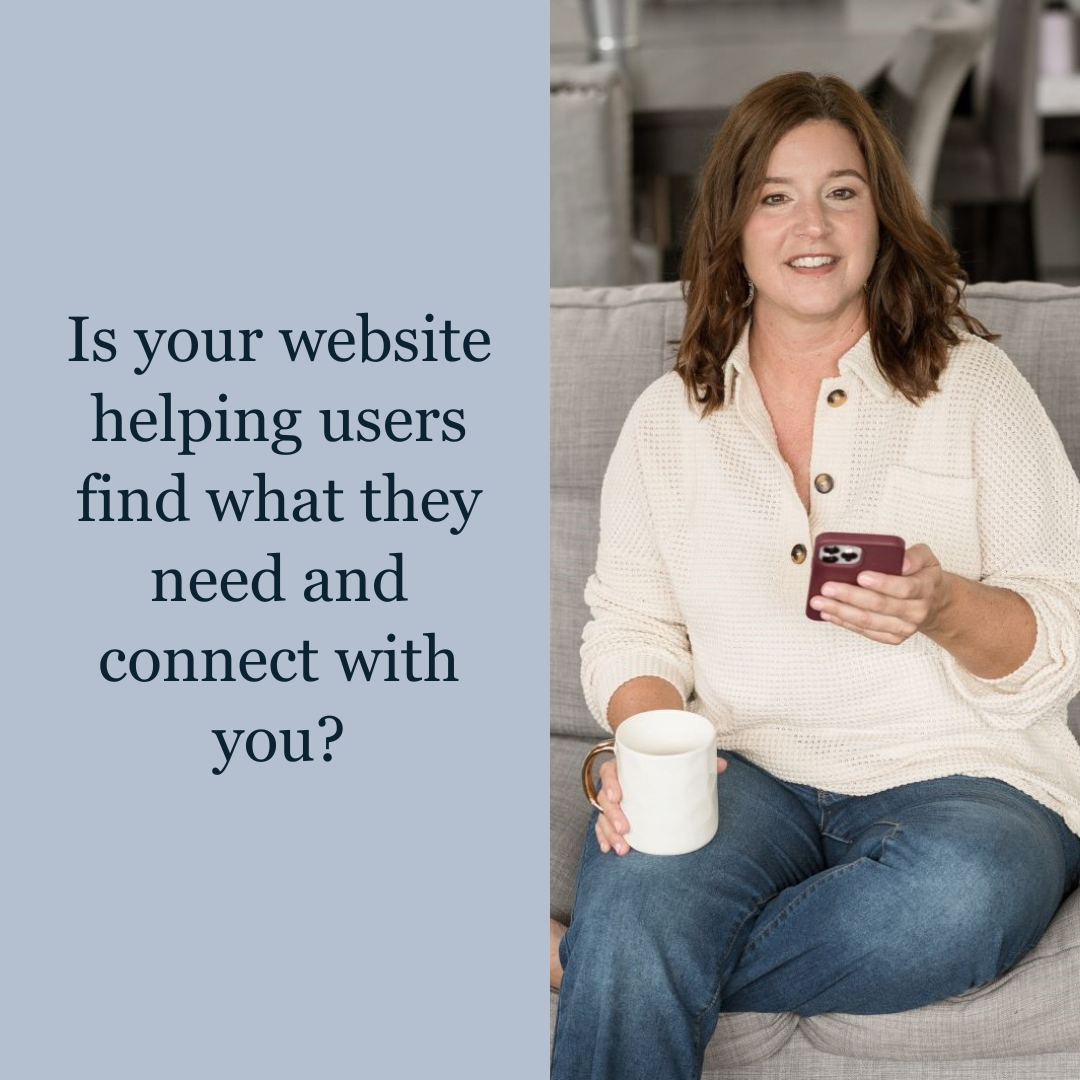
We helps small businesses build websites that are accessible, clear, and easier for EVERYONE to use from the start. If you want a professional review of your site’s accessibility, we’d love to take a look.

Online Course Accessibility FAQs
Do online course videos need captions?
Yes. Under WCAG, prerecorded video with meaningful audio needs captions at Level A (Success Criterion 1.2.2), and live video needs captions at Level AA (Success Criterion 1.2.4). It's also worth considering whether important visual information needs audio description and whether a transcript would help more students.
Does my course need to be accessible if I'm using a third-party course platform?
Yes. Using someone else's platform doesn't make your course accessible automatically. You're still adding your own videos, documents, images, and lesson structure, and you may be connecting other tools for quizzes, payments, or community. Accessibility needs to be checked across the whole experience, not assumed based on the platform.
Is a membership site different from a regular website when it comes to accessibility?
The same WCAG standards apply. You just may not have as much control over fixing accessibility issues as you would on your own website.
What's a good first step for making an existing course more accessible?
Start with the content students use most. Check your main videos for captions and described visuals, review your core workbook, and move through a few lessons and quizzes using only a keyboard. That won't tell you everything, but it shows you where a more detailed review might be needed.

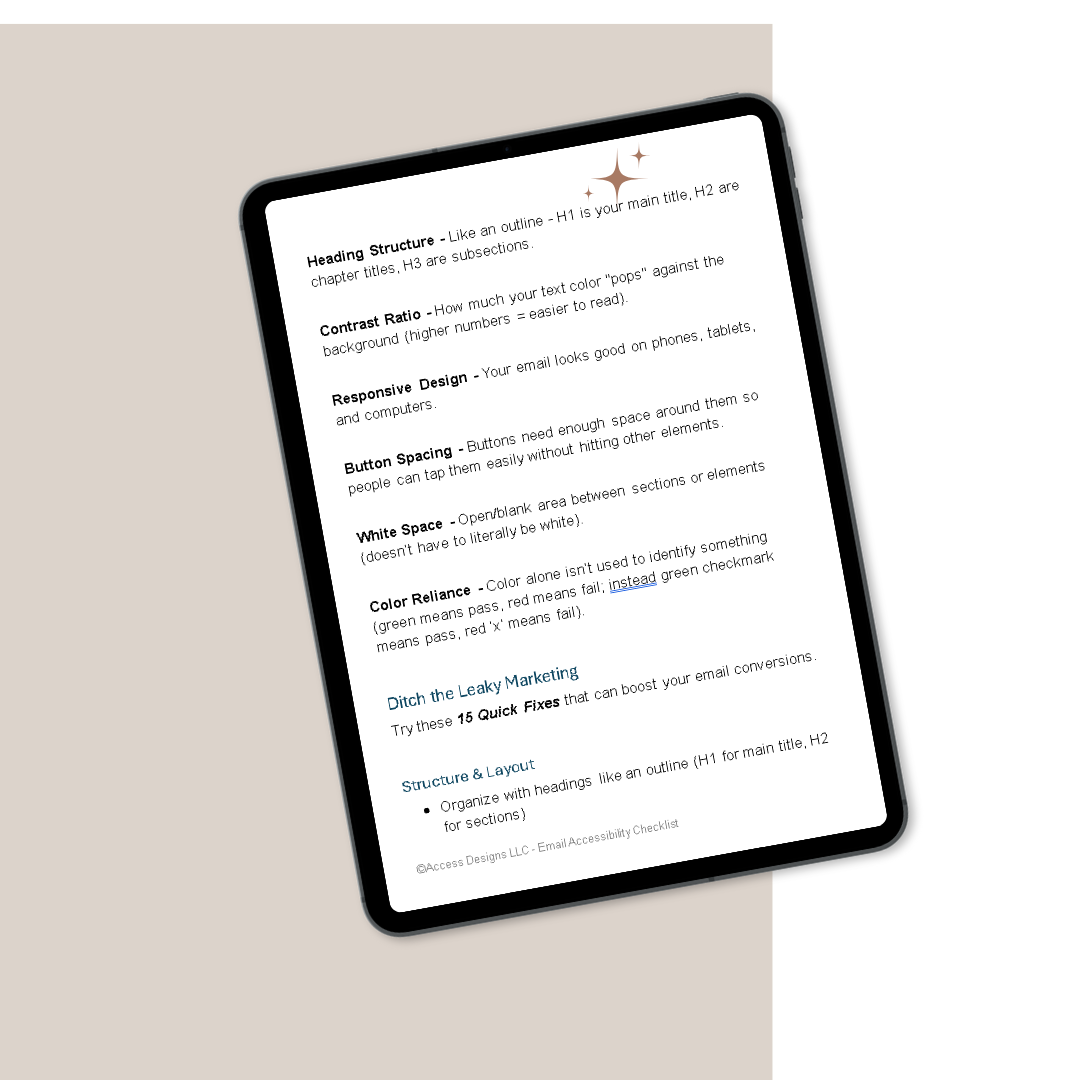
A beginner-friendly guide to captions, transcripts, subtitles, and audio description — so you always know which features your video needs, and how to create them without guesswork.
What You'll Get
What each feature does, and when you need it
A simple way to decide what your video needs
A step-by-step production workflow
Caption and transcript quality checklists
Beginner-friendly tool comparisons, free and paid
Links to official step-by-step tool tutorials
A plain-language standards reference
A pre-publish testing checklist
Beautifully designed, fully accessible PDF
Key Benefits
No technical experience required
Works with any video platform or editor
Built around free and low-cost tools
Instant download after purchase
Important
This is a digital product delivered via instant download. Due to the nature of digital products, all sales are final and not eligible for returns or refunds.
Personal use only
Licensed for individual use and cannot be resold, shared, or redistributed. Each purchase is for single-user access only.